> For the complete documentation index, see [llms.txt](https://docs.emobiq.com/llms.txt). Markdown versions of documentation pages are available by appending `.md` to page URLs; this page is available as [Markdown](https://docs.emobiq.com/emobiq-ai/readme/supabase/integrating-emobiq-ai-with-supabase.md).
# Integrating eMOBIQ AI with Supabase
## The Integration Flow: Seamless, Smart, and Safe
eMOBIQ AI doesn't just connect to Supabase, it **orchestrates** your entire backend workflow with built-in safeguards
{% stepper %}
{% step %}
#### Linking Supabase
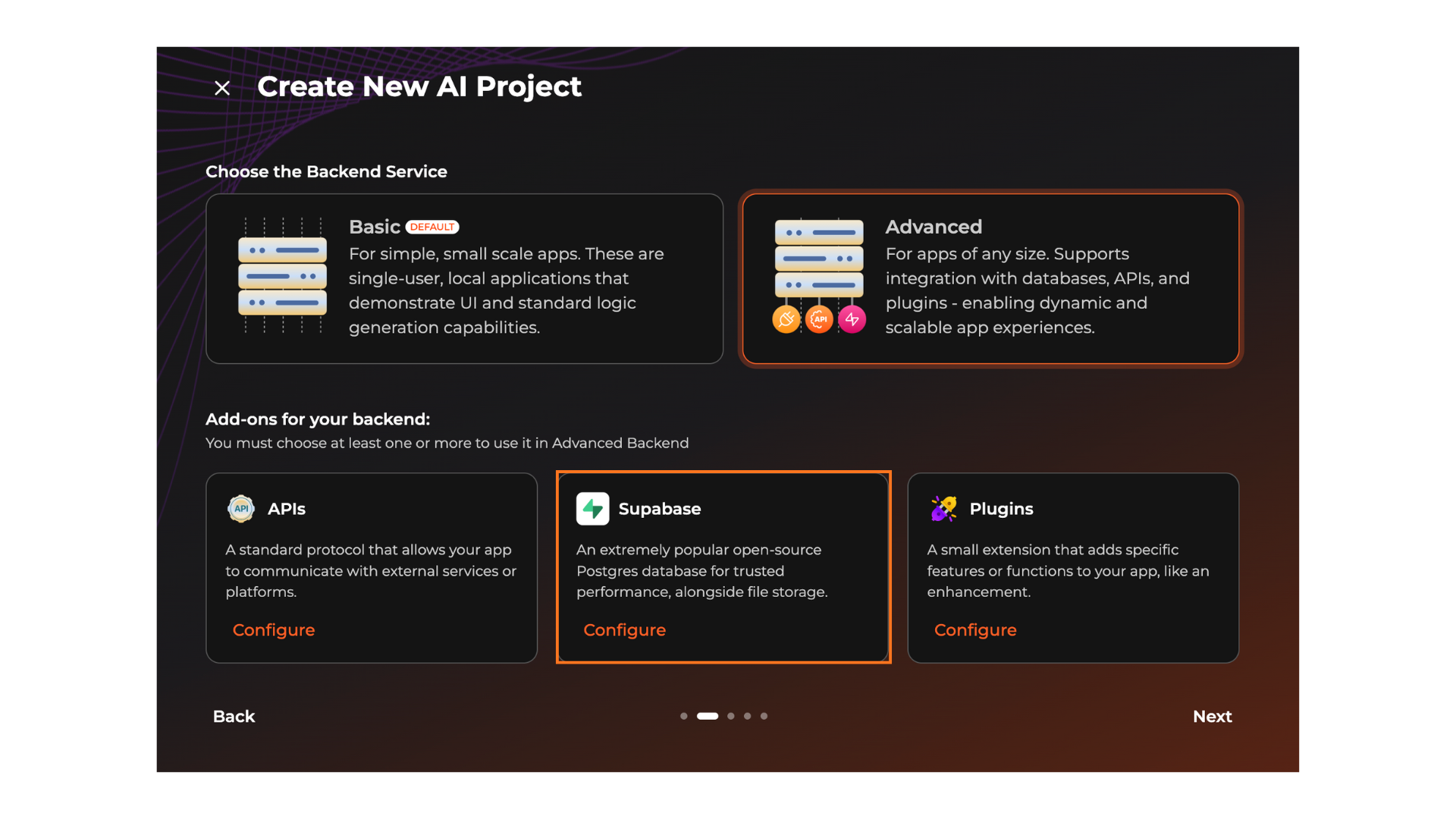
To use Supabase with your eMOBIQ project, simply click `Configure` under the `Advanced Tab`
{% endstep %}
{% step %}
#### Connect to Supabase
Click on `Connect to Supabase`
{% endstep %}
{% step %}
#### Authorise eMOBIQ AI
* Log in to your Supabase account. If you don't have one, simply register for an account to get started
* Select the **Organization** you want to grant API access to
* Authorize eMOBIQ by confirming the permissions
{% endstep %}
{% step %}
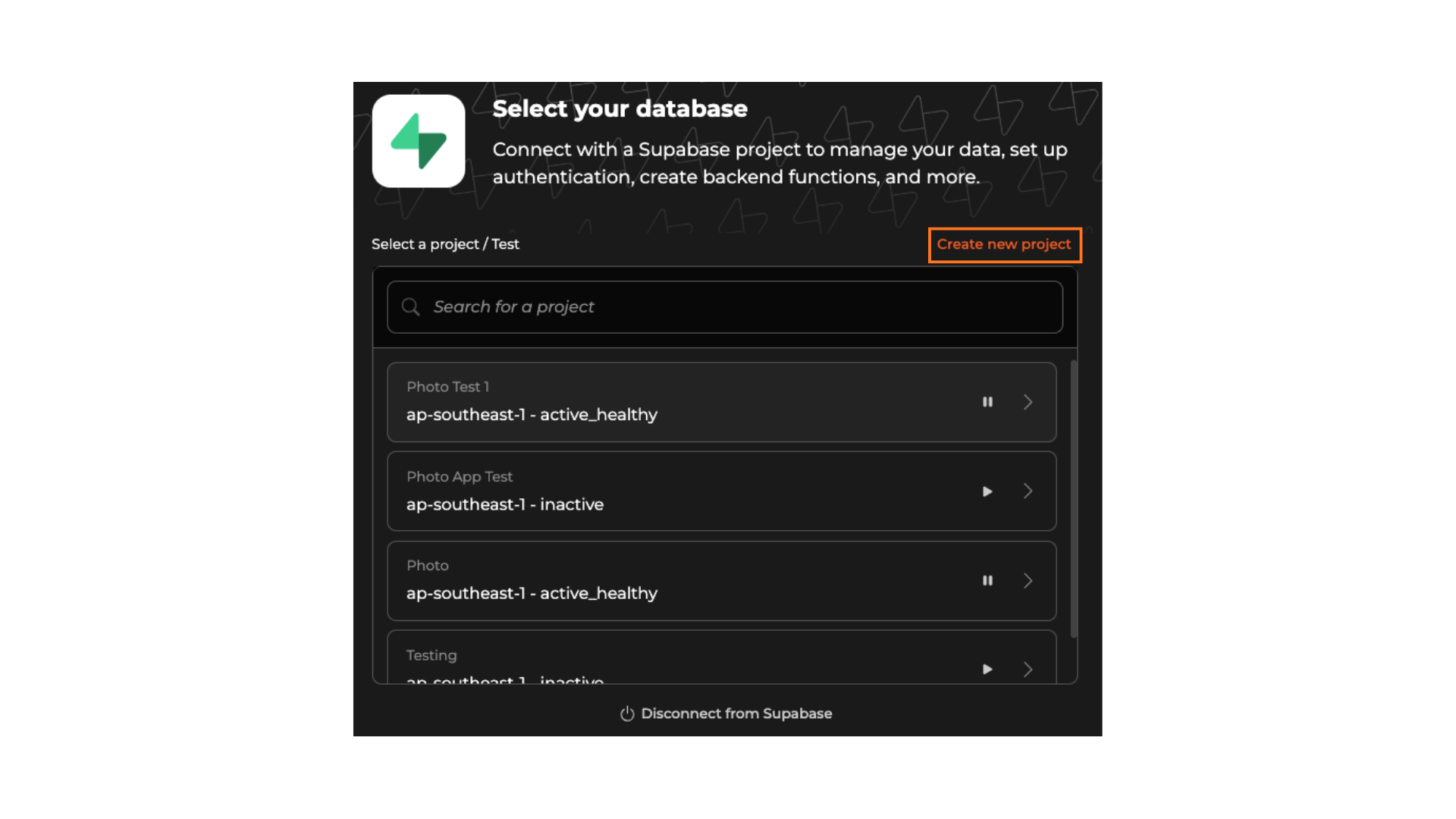
#### Select or Create a Project
Select the project you would like eMOBIQ AI to create the database on
If you haven't created a project yet, you can click `Create New Project` directly from the eMOBIQ AI platform
{% endstep %}
{% endstepper %}
***
## Pro Tips for Success
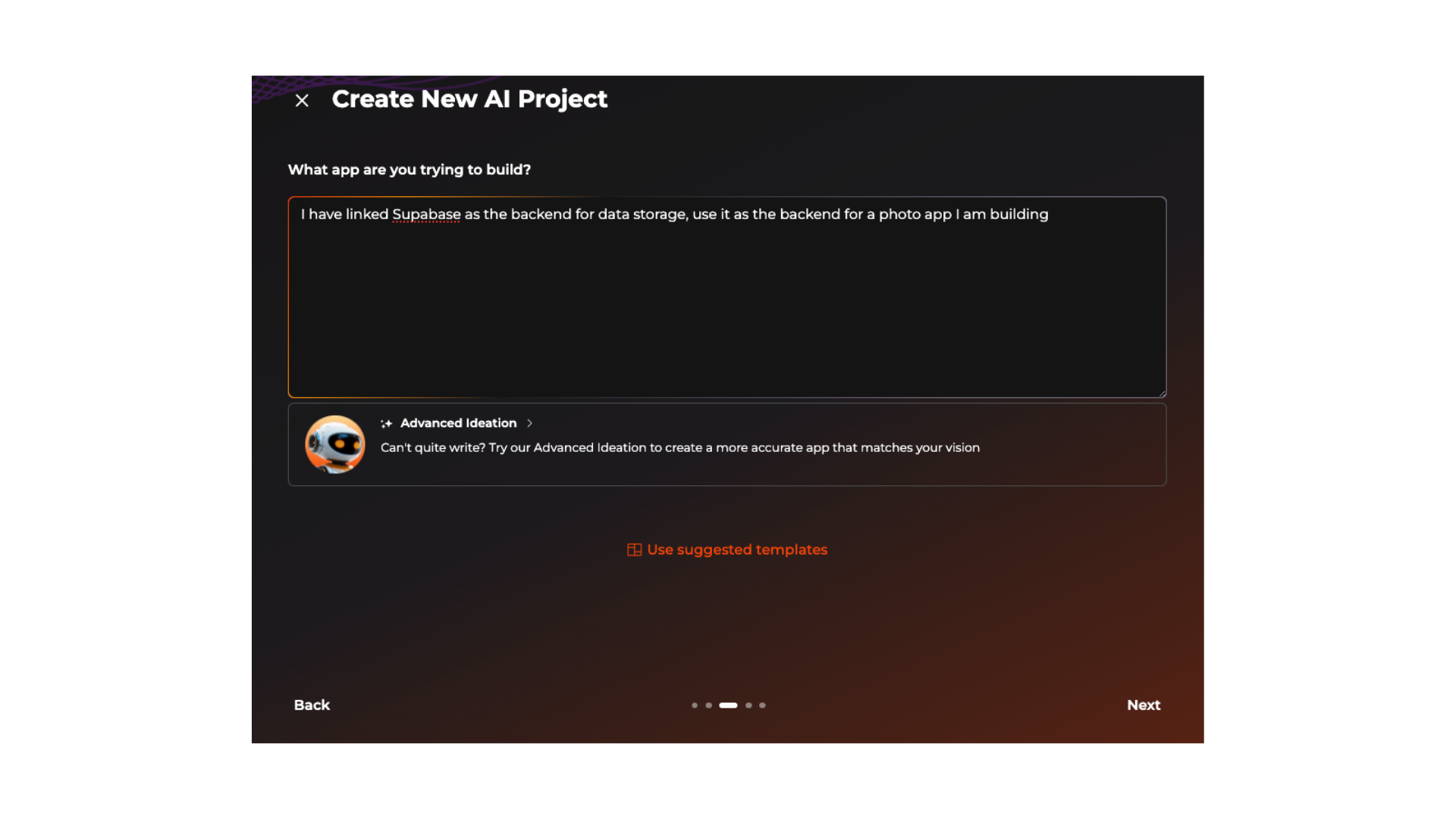
#### Let eMOBIQ AI know which backend to use
In your app ideation phase, be sure to let eMOBIQ AI know you want to use Supabase as the backend database. This is to help ensure that the backend is confirmed and eMOBIQ AI is clear on what backend you want to use.
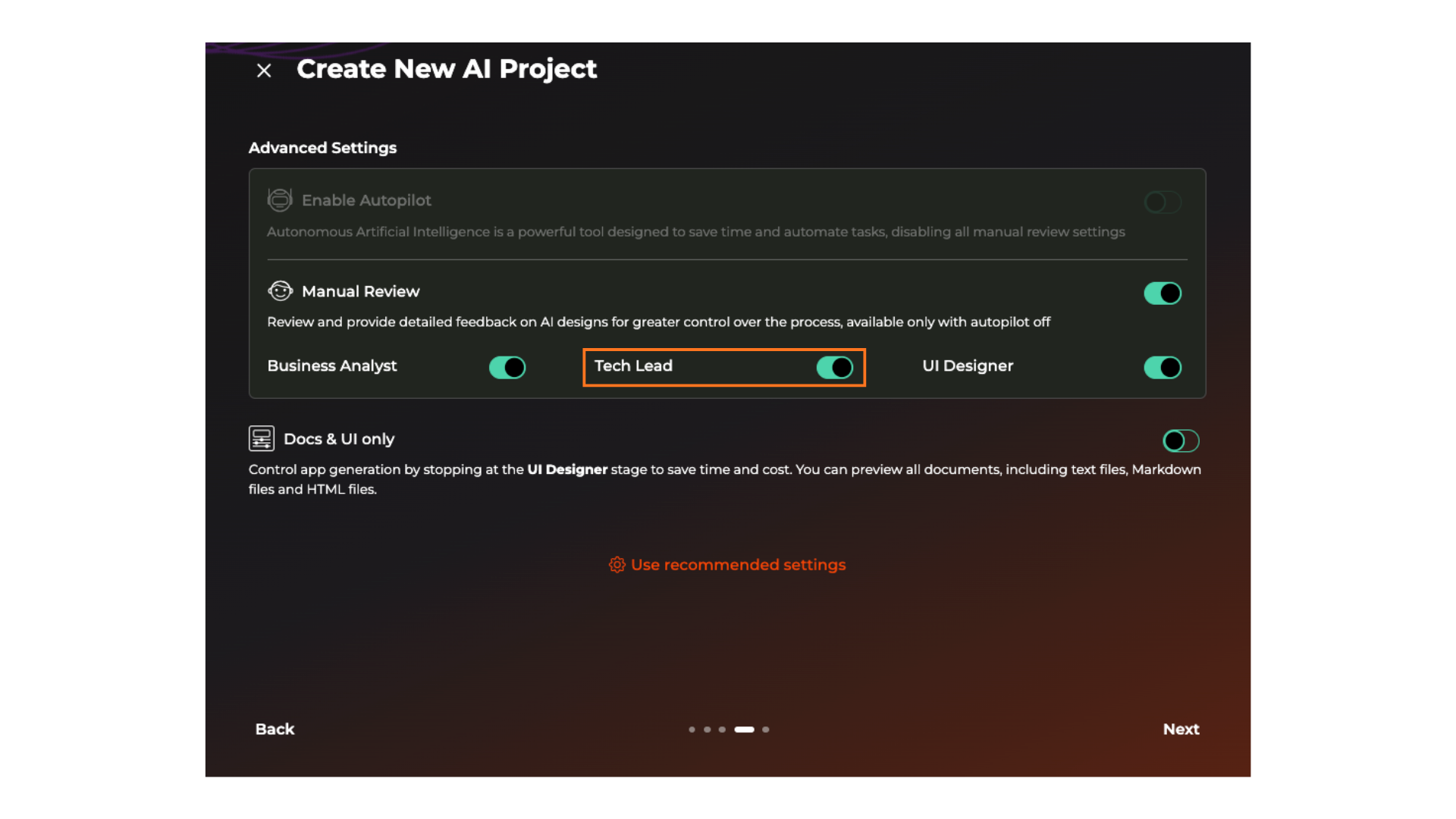
#### Selecting Manual Review (Recommended)
While not compulsory, we **highly recommend** selecting the `Manual Review` option over Autopilot.
**Why?**
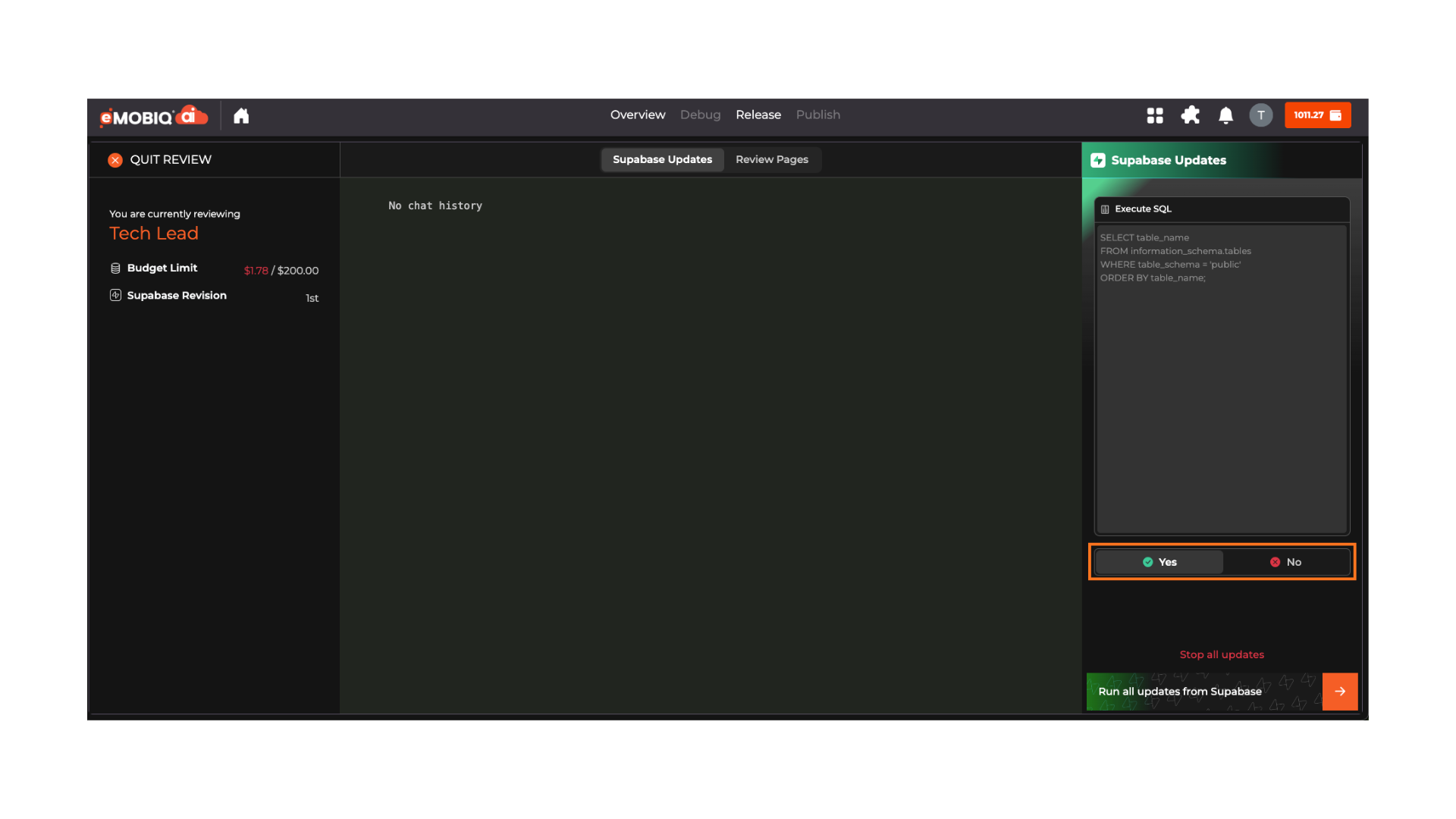
* In the Tech Lead stage, you'll receive prompts to review database schemas
* You can approve or reject each schema based on your specific requirements
* Each SQL query will create tables on Supabase based on what you approve or modify
* This gives you full control and ensures the database structure matches your needs
***
### Summary
By following these steps and best practices, you'll have a fully integrated Supabase backend that's tailored to your application's needs — with the safety and control of manual review every step of the way.
%20(1).png?alt=media)
%20(1).png?alt=media)