# Transfer Supabase Projects

#### Seamlessly Move Projects Between Organizations!

Organize your Supabase infrastructure efficiently by transferring projects to the right organization. Whether you're restructuring teams, consolidating resources, or managing multiple environments, **Supabase Project Transfer** makes it effortless to keep your workspace organized!

#### Why Transfer Projects?

***Optimize Organization Structure*** Keep development, staging, and production projects properly organized within their respective organizations for better management and billing clarity.

***Team Collaboration*** Move projects to the correct organization where your team members have access, ensuring smooth collaboration and proper permissions.

***Simplified Billing Management*** Consolidate projects under the appropriate organization for streamlined billing and resource allocation.

{% stepper %}
{% step %}
**Verify Your Organization**

Ensure you're working within the correct organization context before initiating the transfer.

<figure><img src="/files/2CQcs3iBSYcx9KqShP7u" alt=""><figcaption><p>Confirm you're in the correct organization before starting the transfer on the top left corner</p></figcaption></figure>

If not, click the organization dropdown and switch to the correct organization
{% endstep %}

{% step %}
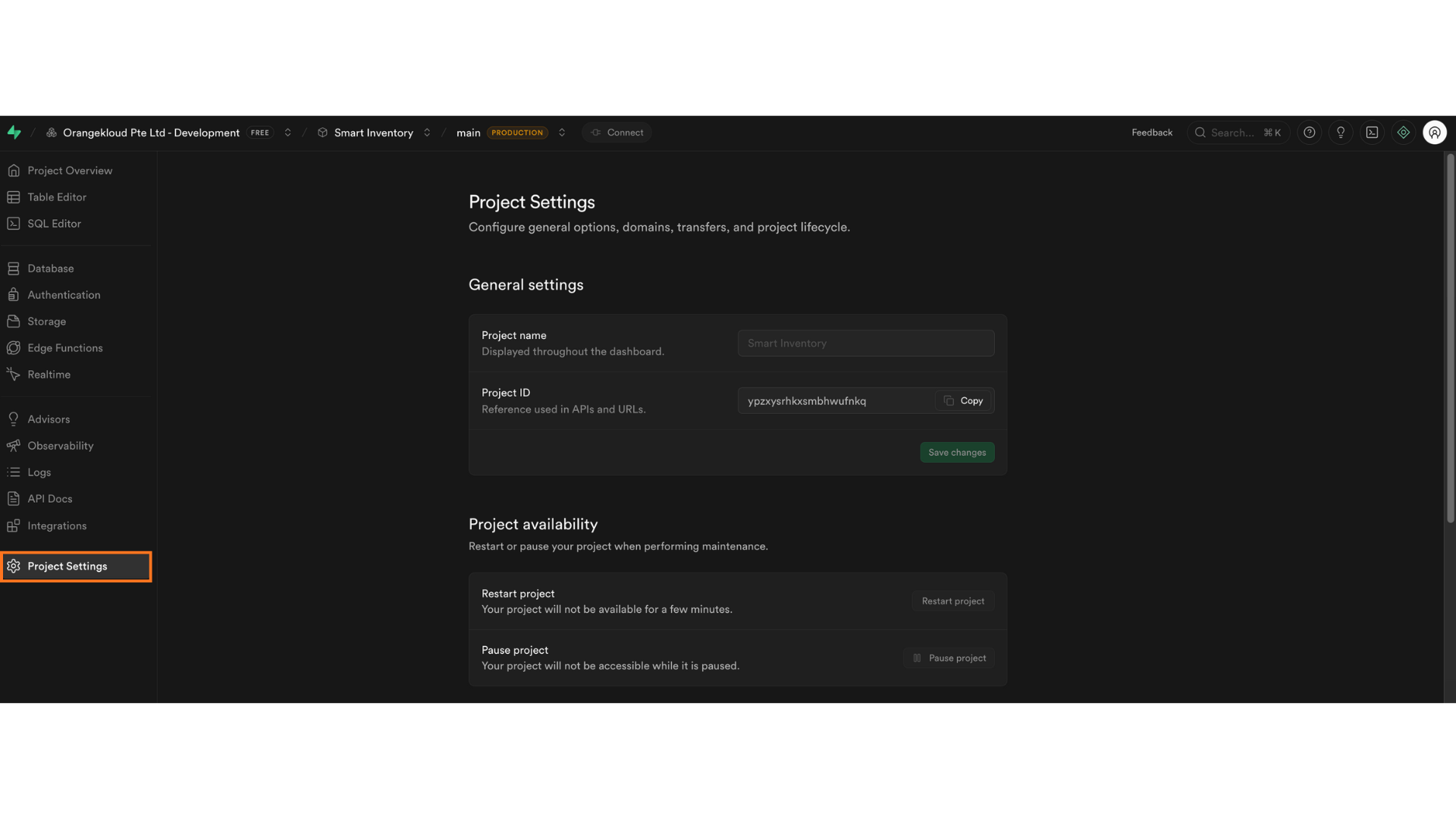
**Access Project Settings**

<figure><img src="/files/pctNAsknnNj1bcl7x2dv" alt=""><figcaption><p>Open Project Settings to access transfer options</p></figcaption></figure>

* Select the project you want to transfer from your project list
* Click on **"Project Settings"** in the left sidebar (look for the gear/cog icon ⚙️)
* The Project Settings page will open
  {% endstep %}

{% step %}
**Locate Transfer Project Option**

<figure><img src="/files/ZCYmQXBqXJgbxiK3NXnY" alt=""><figcaption><p>Scroll down to find the Transfer Project section</p></figcaption></figure>

{% hint style="warning" %}
*Project transfer is a significant action. Make sure you have the necessary permissions to transfer projects.*
{% endhint %}
{% endstep %}

{% step %}
**Select Target Organization**

Choose the destination organization for your project.

<figure><img src="/files/pzeLGnPqzZyfBC2HRSPE" alt=""><figcaption><p>Select the target organization for your project transfer</p></figcaption></figure>

* Source organization name
* Project name being transferred
* *Review transfer details carefully before proceeding*
  {% endstep %}

{% step %}
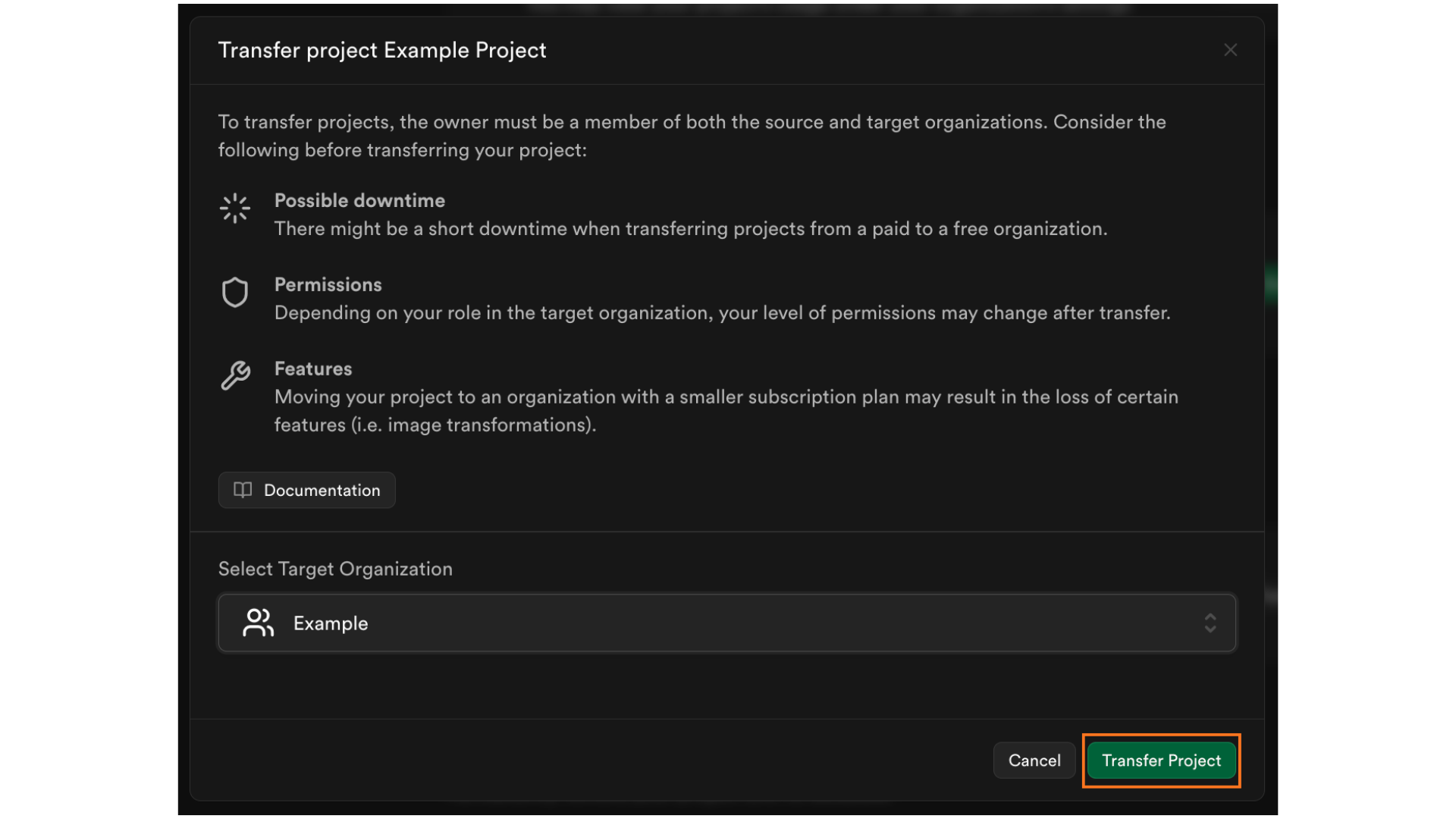
**Confirm and Complete Transfer**

Finalize the project transfer to move it to the new organization.

<figure><img src="/files/sNNVC6RsNdlKT4V1yHh5" alt=""><figcaption><p>Click T<strong>ransfer Project</strong></p></figcaption></figure>

Transfer complete! Your project is now in the new organization
{% endstep %}
{% endstepper %}

#### What Happens During Transfer?

***Project Ownership Changes*** The project moves to the target organization's ownership, billing, and management structure.

***Access Permissions Update*** Access is now controlled by the target organization's team members and permissions settings.

***Billing Transfer*** All future billing for this project will be charged to the target organization's payment method.

***Project Resources Preserved*** All databases, authentication settings, storage buckets, and configurations remain intact during the transfer.

For more information visit the<a href="https://supabase.com/docs/guides/platform/project-transfer" class="button primary">Official Supabase Documentation</a>


---

# Agent Instructions: Querying This Documentation

If you need additional information that is not directly available in this page, you can query the documentation dynamically by asking a question.

Perform an HTTP GET request on the current page URL with the `ask` query parameter:

```
GET https://docs.emobiq.com/emobiq-ai/readme/supabase/transfer-supabase-projects.md?ask=<question>
```

The question should be specific, self-contained, and written in natural language.
The response will contain a direct answer to the question and relevant excerpts and sources from the documentation.

Use this mechanism when the answer is not explicitly present in the current page, you need clarification or additional context, or you want to retrieve related documentation sections.